You can integrate briefin with several other tools or you can create custom integrations using the API. With an Enterprise subscription plan briefin currently integrates to:
- Deltek WorkBook
- Asana
- Trello
- Jira
- Wrike
- Monday.com
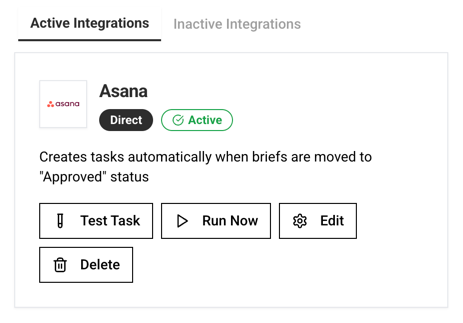
All integrations will create a new task in the other tool either linked to a project or not (except Trello which does not support projects and WorkBook where a project needs to be create first). The task is created automatically when a brief is moved to the Approved status.
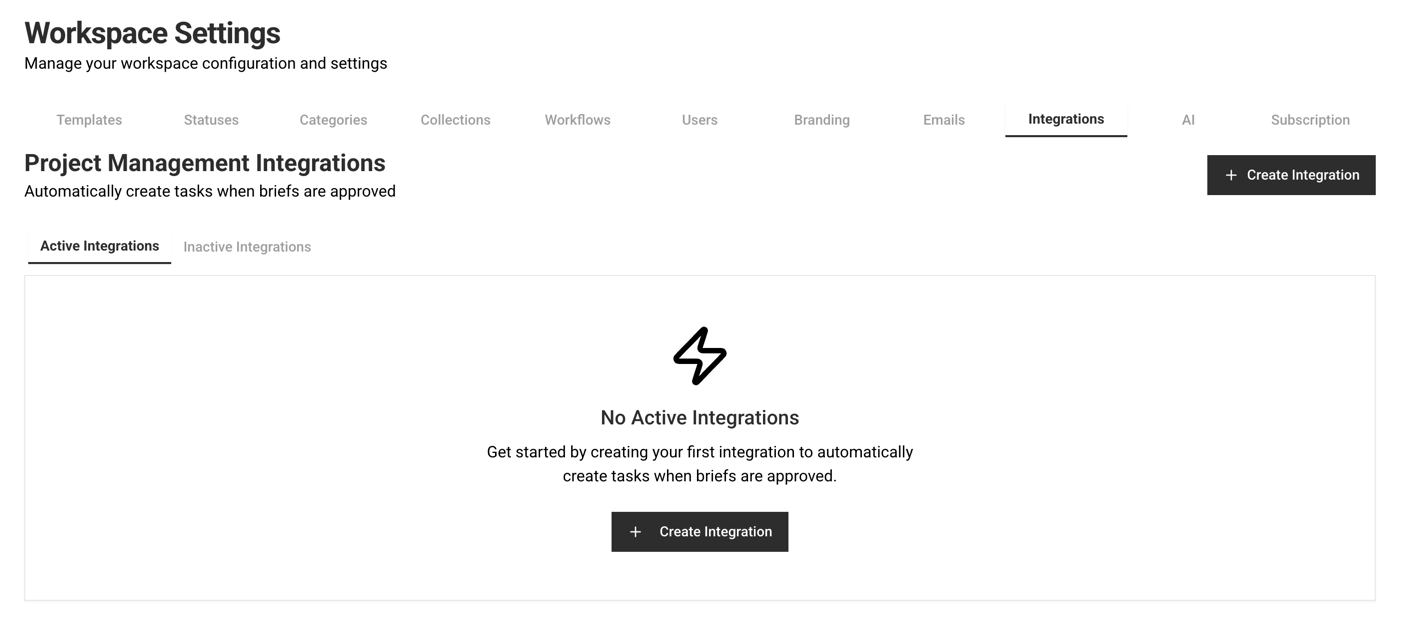
To connect briefin to another tool, click on the Create Integration button.
You can choose a Direct Integration or n8n Workflow Integration.
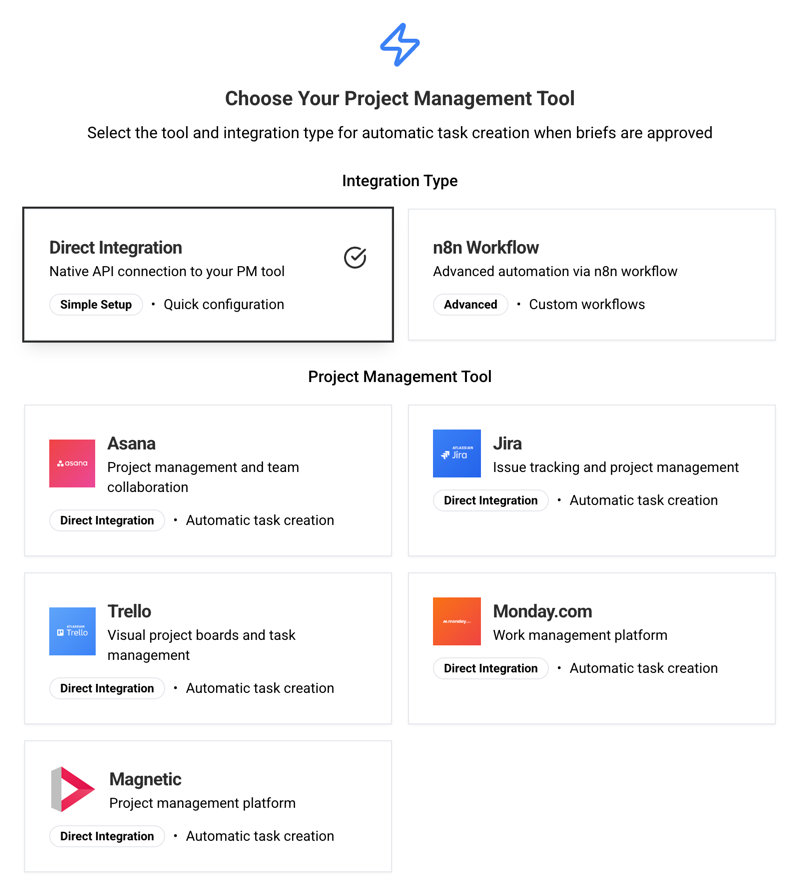
IMPORTANT: to connect to another tool, you will need the API key/Access Token from the tool. When selecting a tool from the list, it is described how to obtain the API key. Refer to the official API documentation from the tool.
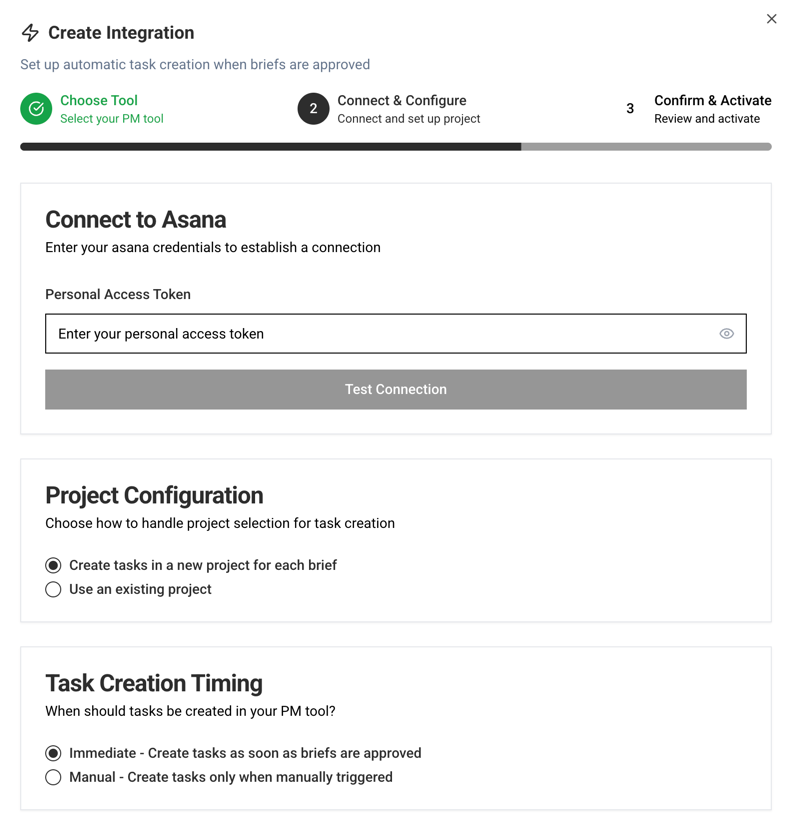
Direct Integration
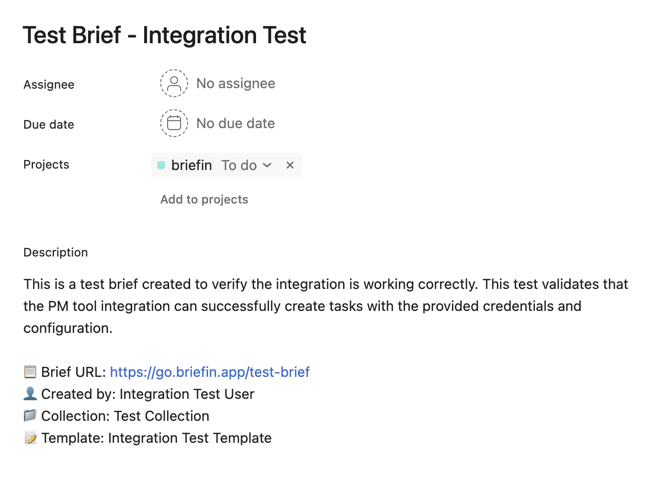
Creates a task (task name: brief name), and injects the below into the task description:
- Brief Submitted by:
- Collection
- Template name
- Link to Brief
Example of a test task created in Asana:
Deltek WorkBook integration
The WorkBook integration works slightly differently than the other direct integrations. In order for a task to be created a default job must be created where the task can be added to when a brief is Approved and an API Access Role and User must be added.
Follow the steps below:
1. In Settings -> User Access Rights, create a new Access Role (you can name it "briefin").
Make sure that the type is set to Advanced User and that it is marked as API only.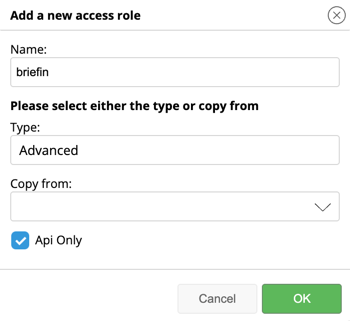
2. In Resources -> Add Employee, create an Advanced User (you can name it "briefin")
Fill out the general information for the user, but note:
- Select the Access Role "briefin" that you just created and assign this to the user.
- Add the briefin user to the company where the default job will be created (later).
- You can use your own email, or a general company email for the briefin user (you must have access to the email).
- After user creation, the user invite email password will trigger and you must click on the link and set a password for the user (note that you are not able to login with the user).
Finally, make sure the user have access to the company where the default job is created (later).
3. Return to Settings -> User Access Rights. Select the briefin access role from the drop down and verify the briefin user is linked to the access role. Under the Access panel in the right hand side, tick the Main option.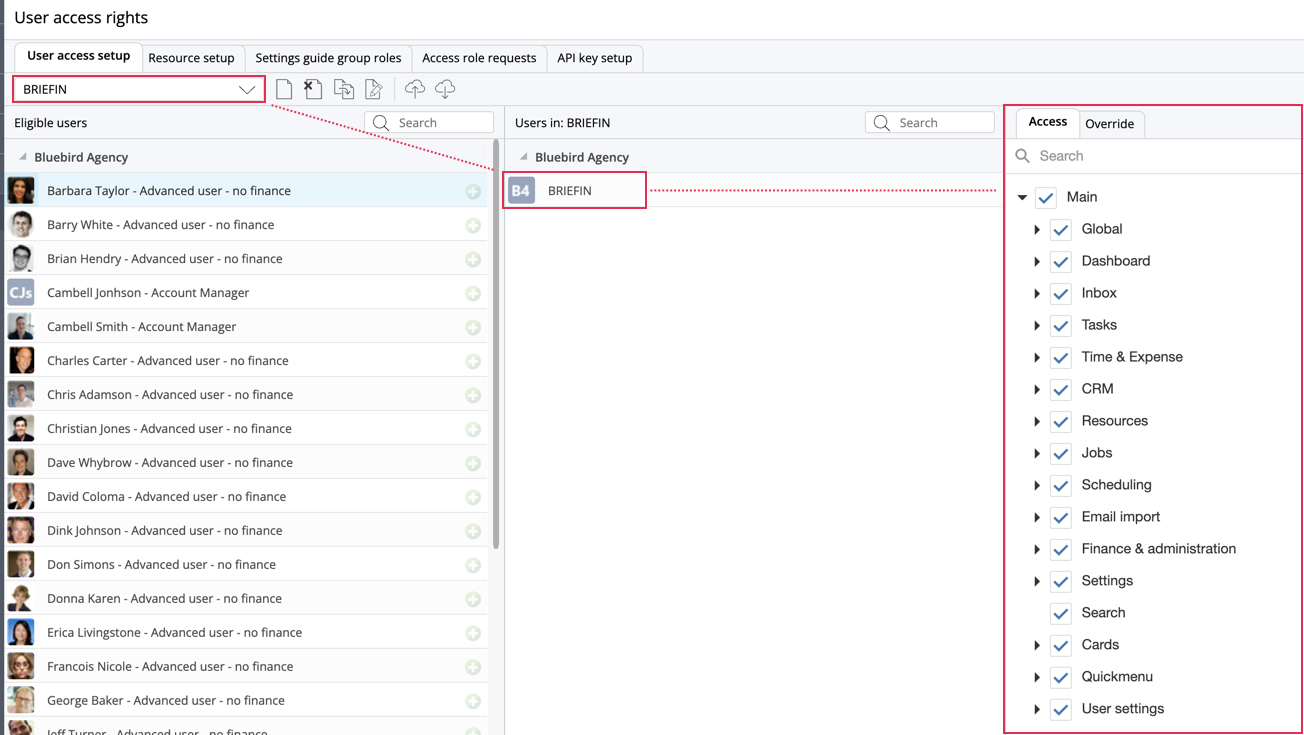
4. Go to API Key Setup tab, and generate new API key (the first button in the table).
IMPORTANT! The key will now be shown in a new window. You must copy the key and keep it in a safe space. It is only shown once.
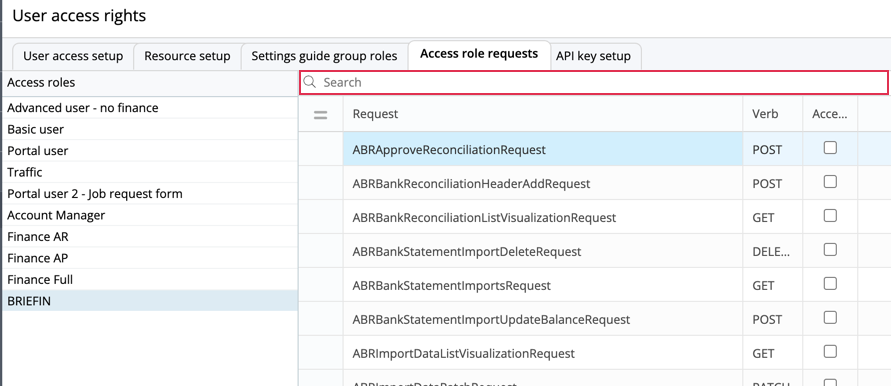
5. Go to Access role requests, select the briefin access role and add the following (you can use the search function):
| Request | Verb | Access |
| WBEnumRequest | GET | TRUE |
| TaskInsertPositionRequest | PUT | TRUE |
| SystemVariableRequest | GET | TRUE |
| SaveDocumentRequest | POST | TRUE |
| PlanRequest | GET | TRUE |
| JobsRequest | GET | TRUE |
| JobSimpleVisualizationRequest | GET | TRUE |
| CompaniesRequest | GET | TRUE |
6. In briefin, go to Workspace Settings -> Integrations -> Click Add Integration and select Direct Integration and Deltek WorkBook -> Click Next
7. Fill out the connection details (note that some of it is marked as optional, but we've found that it works best by filling out all information). Click Test Connection. If successful proceed to the next step by scrolling down the page.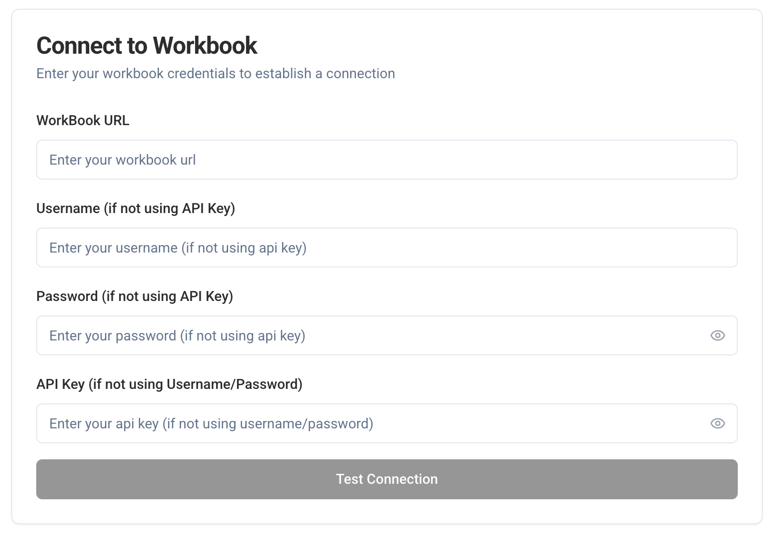
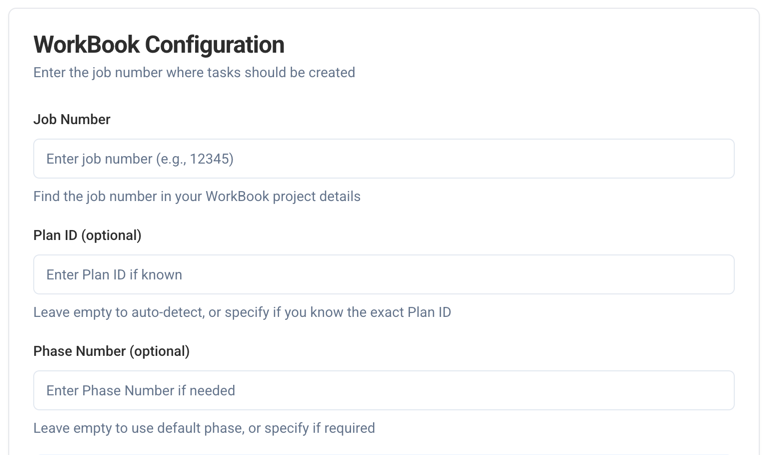
8. Go to WorkBook and add a new client "briefin" and a job linked to the client named "briefin" in the company the briefin user is linked to (if multiple companies). You can name both the client and job anything you like.
Note down the Job Number and Plan ID (Schedule ID). The Plan ID (Schedule ID) is found under Tasks -> Settings, bottom left corner).
Input the information into briefin as seen below (Phase number is not needed unless you would like to specify a phase - it will default to the first if not).
9. You are almost there...
Test the integration by clicking "Test Task Creation".
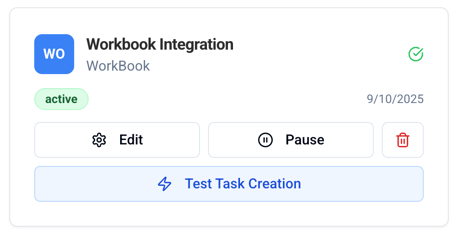
When a brief is moved to the Approved status, it will automatically create the task in WorkBook.
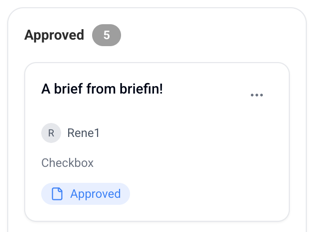
10. Final Result! both the "Test Task" and the "A briefin from briefin task" is now in WorkBook.
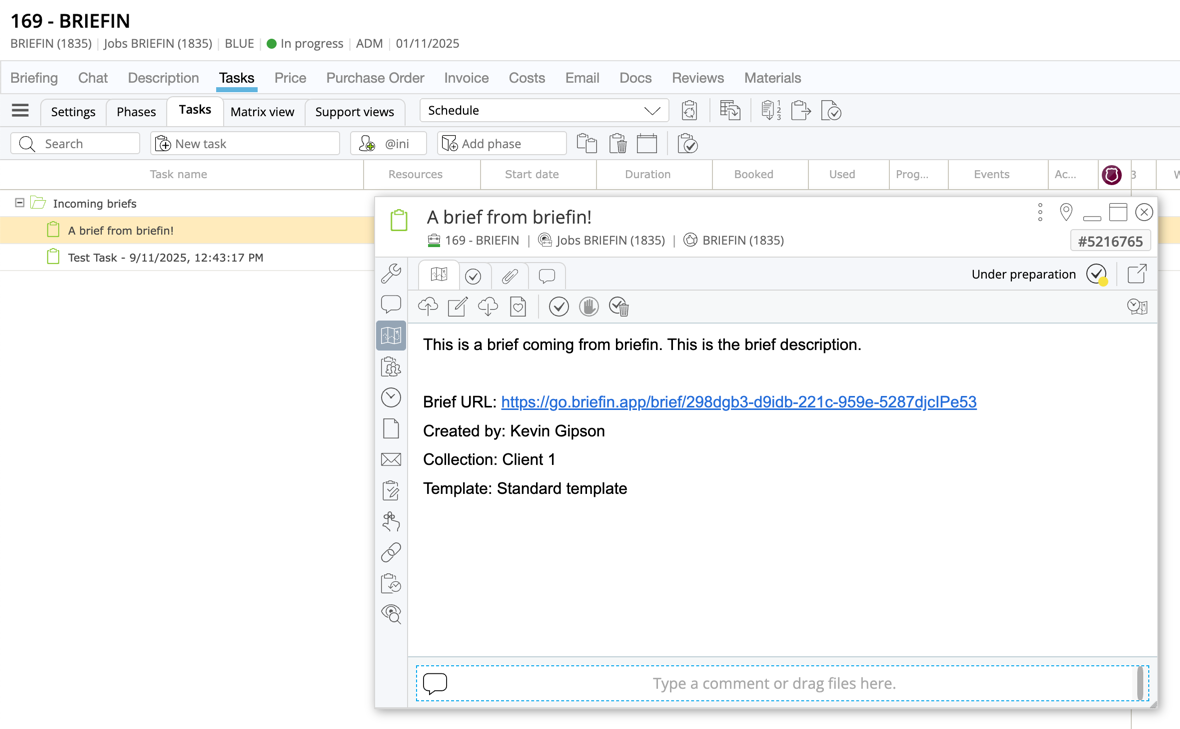
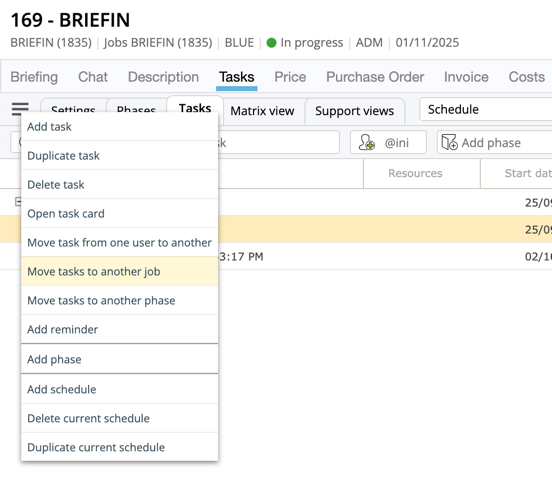
You can now move the task to another job and start work.
n8n (workflow automation tool like Zapier)
This integration will push the same data to n8n as direct integrations from where it is possible to setup custom workflows and extend the integration even further.
When an integration has been setup you can manage it from the list. You can have multiple integrations running in parallel.
API key - RESTful API
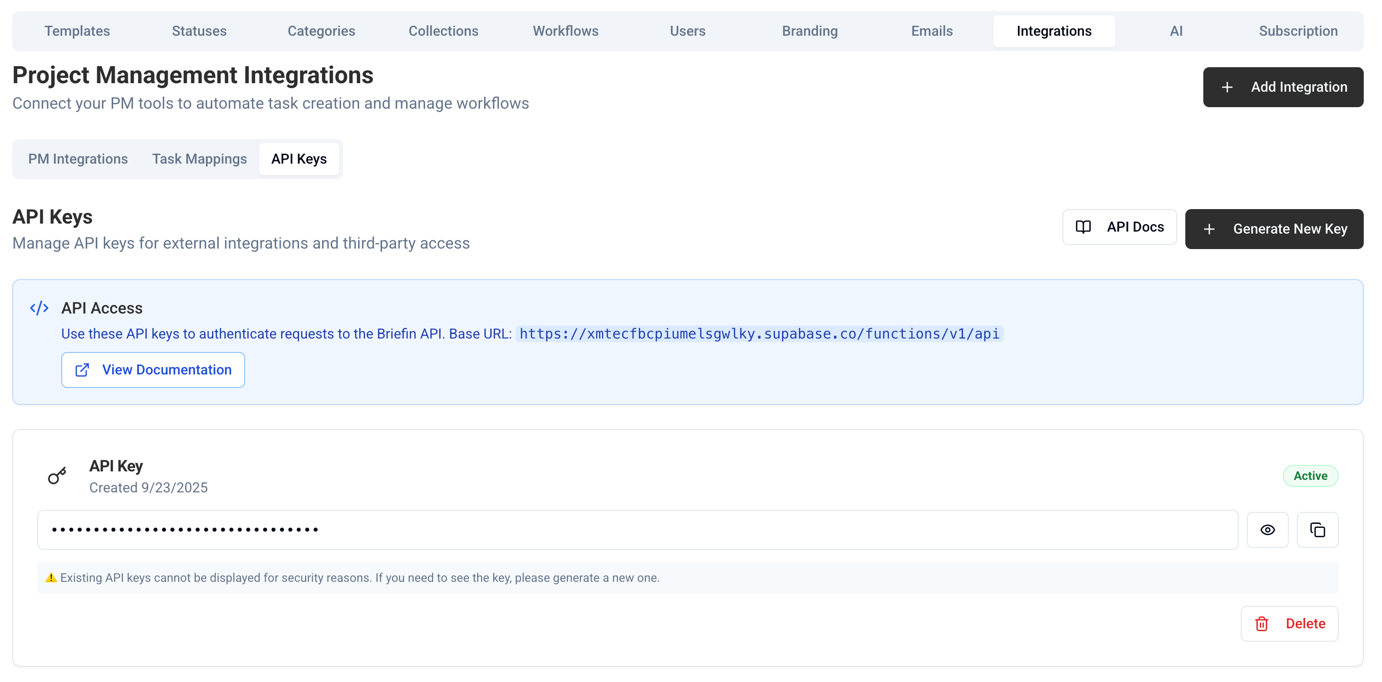
briefin can create a unique API key that allow you to connect to the system from other systems and build your own custom integration.
Documentation is located here: https://go.briefin.app/api-docs
Was this article helpful?
That’s Great!
Thank you for your feedback
Sorry! We couldn't be helpful
Thank you for your feedback
Feedback sent
We appreciate your effort and will try to fix the article