Brief Templates can be added either by adding a brief from the Template Library, Imported or created from scratch.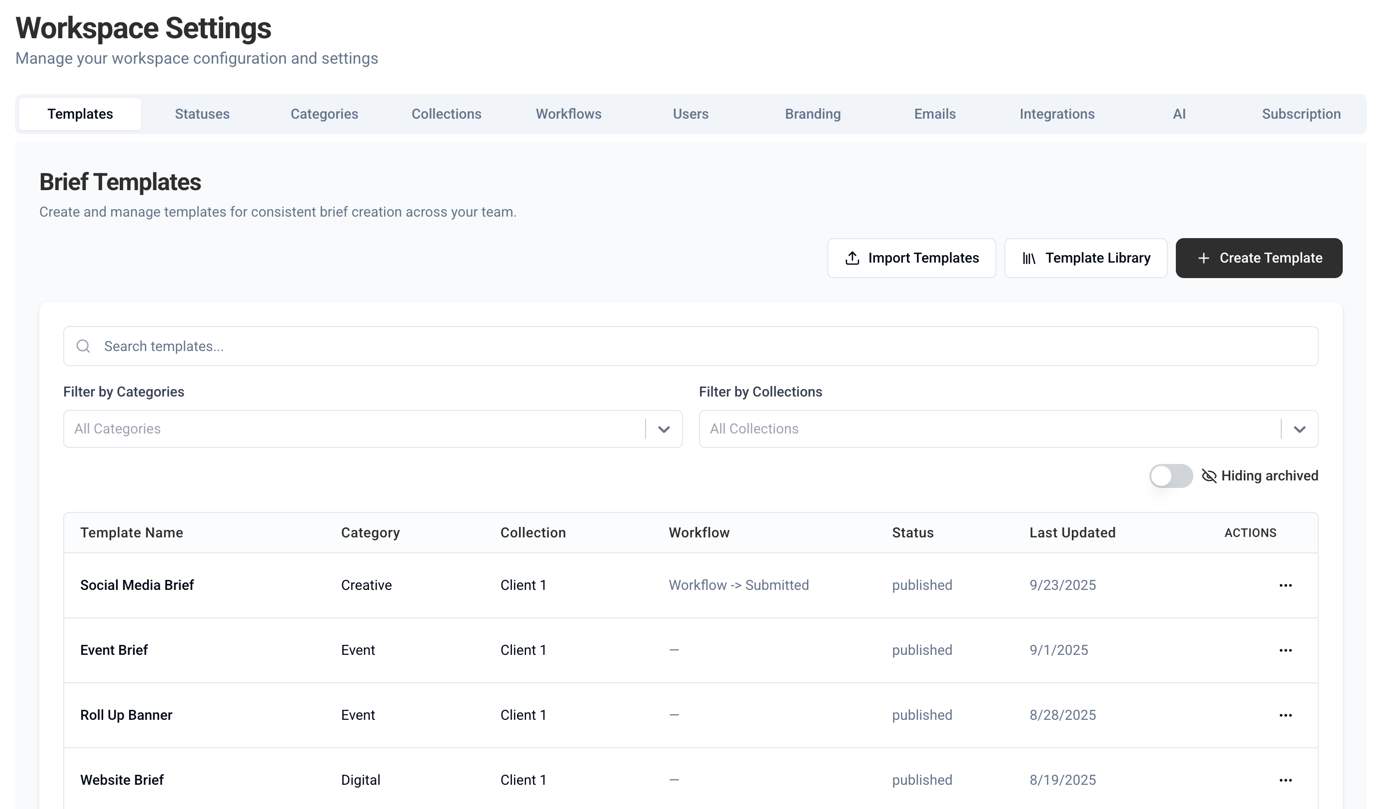
Templates can be created and edited in the Template Designer. In the right hand side, Field Types can be drag n' dropped on to the Drop Zone.
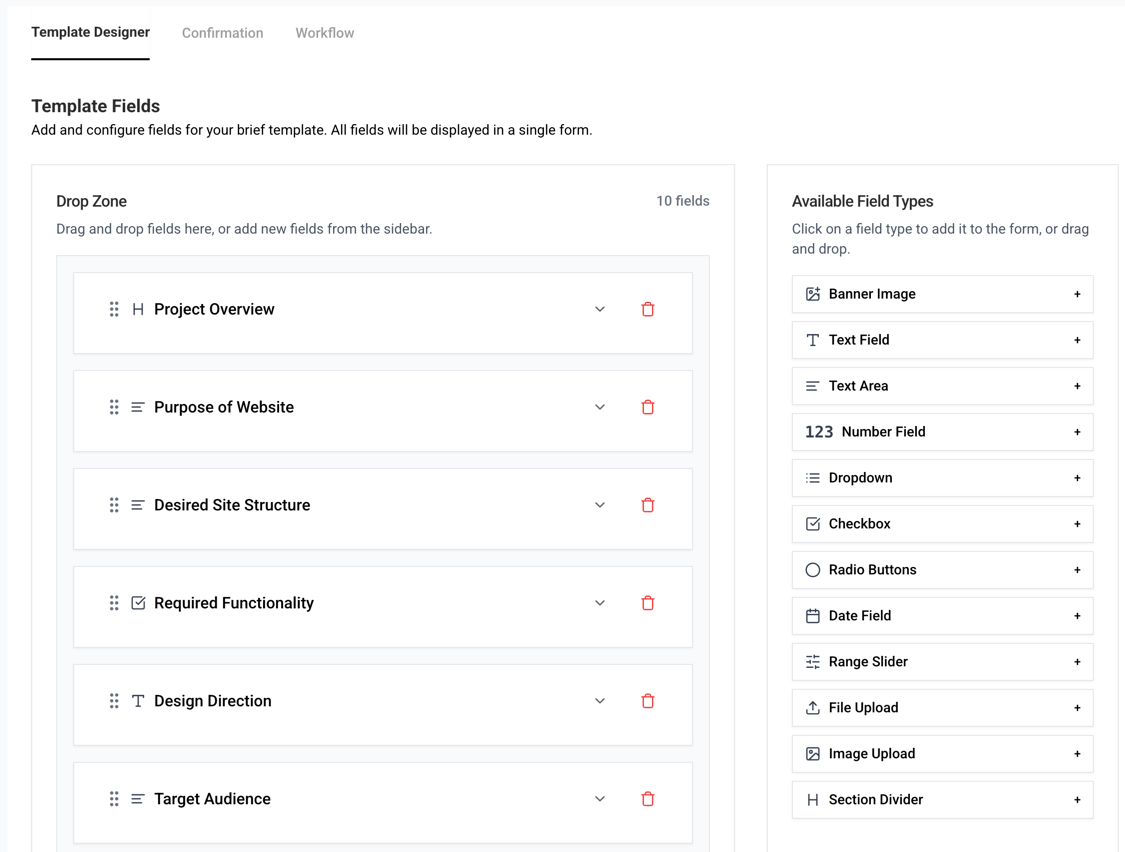
When a Field is added to the Drop Zone, the field can be edited.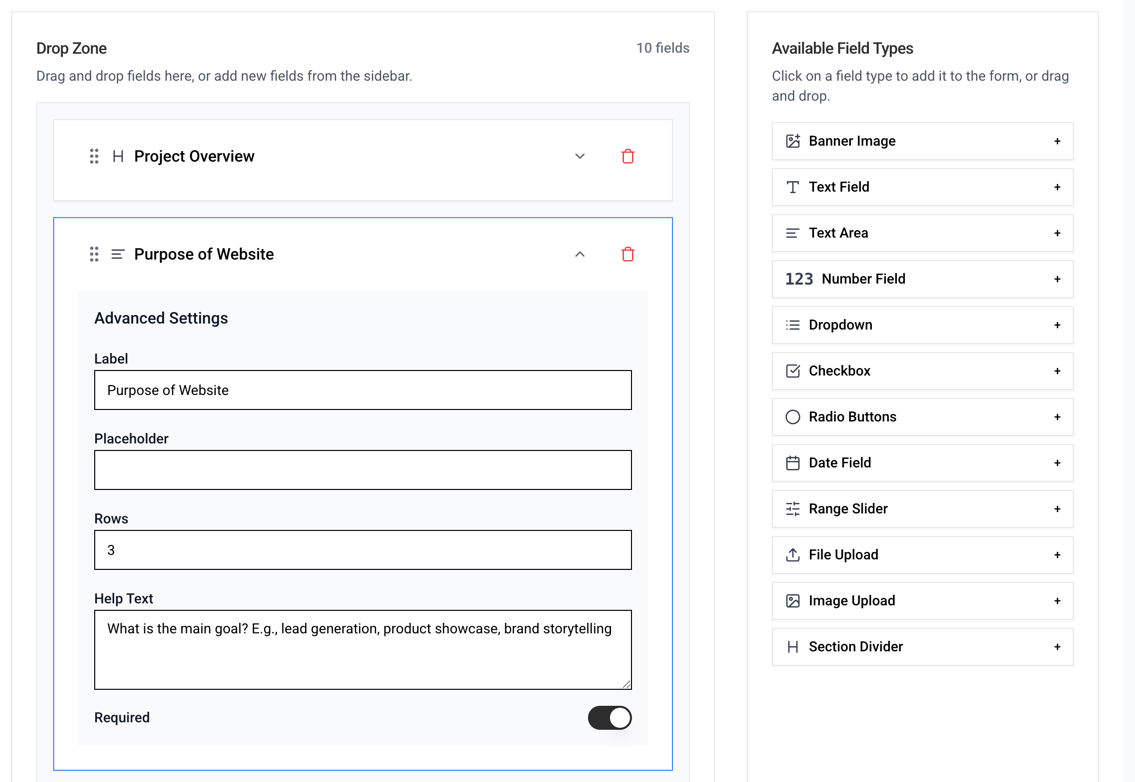
Note that the Banner Image field type can be used to brand the brief templates with a header image.
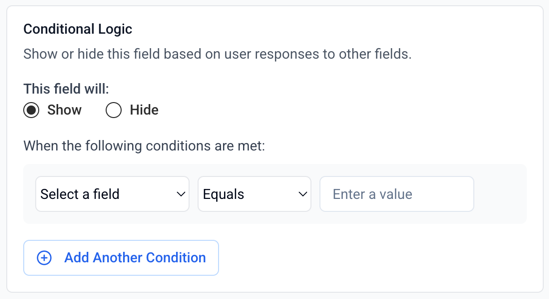
The Checkbox, Dropdown, Radio Button and Date field types has some additional functions:
Conditional logic: show or hide this field based on user responses to other fields.
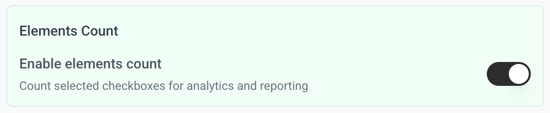
Checkbox, Elements Count: the elements count function is directly linked to Analytics so when enabled it will report on the number and types of elements that were selected in a brief.
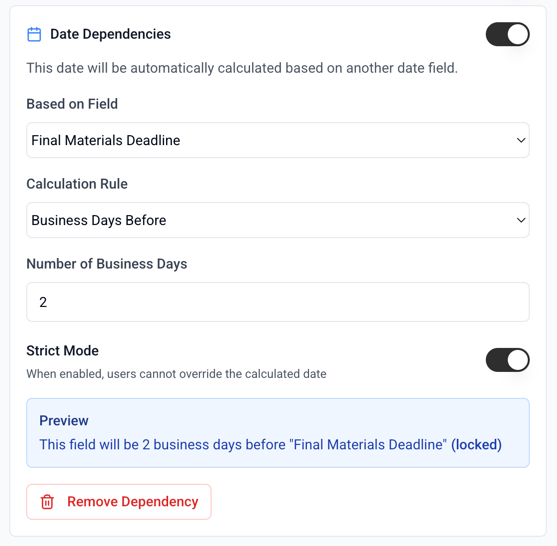
Date, Date Dependencies: you can apply date dependencies between date fields. A typical use case for this is to have a date field for Campaign Live Date, and then link other date fields to this with calculation rules applied.
To change the confirmation message that appears after brief submission, go to Confirmation. To assign a workflow to a template, go to Workflow (make sure to have a workflow created first).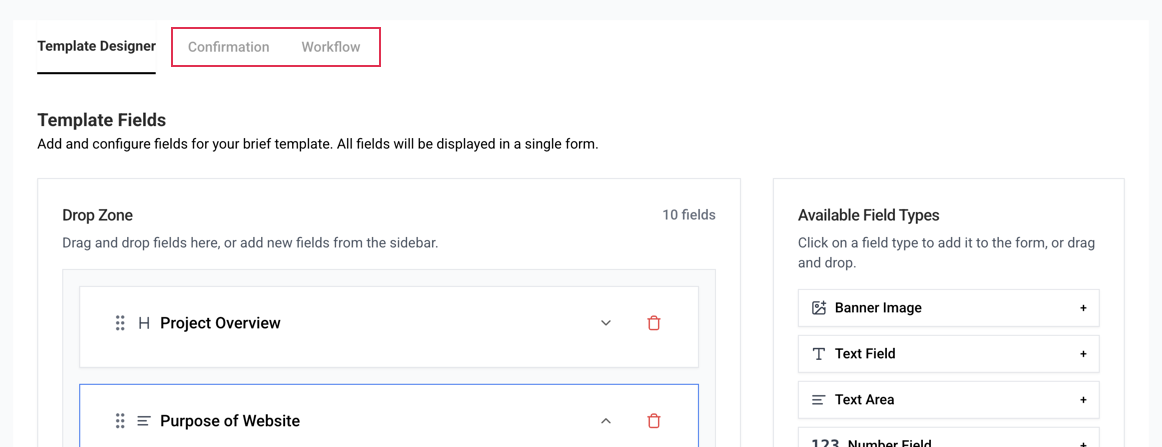
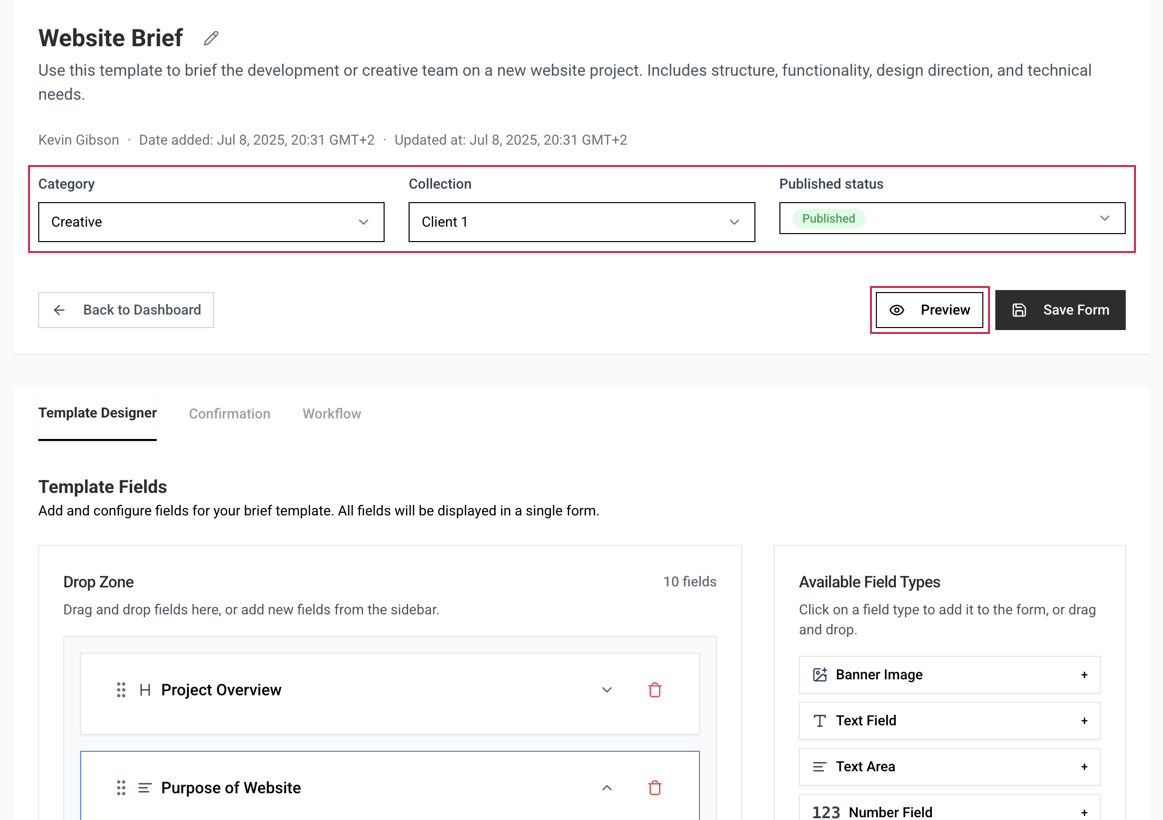
Finally, the template must be assigned to a Category, a Collection and be set as Published. You can preview the template by clicking on the Preview button.
Import Templates
You can import templates from a CSV file. Start by downloading the sample export CSV file and read the instructions provided in the file.
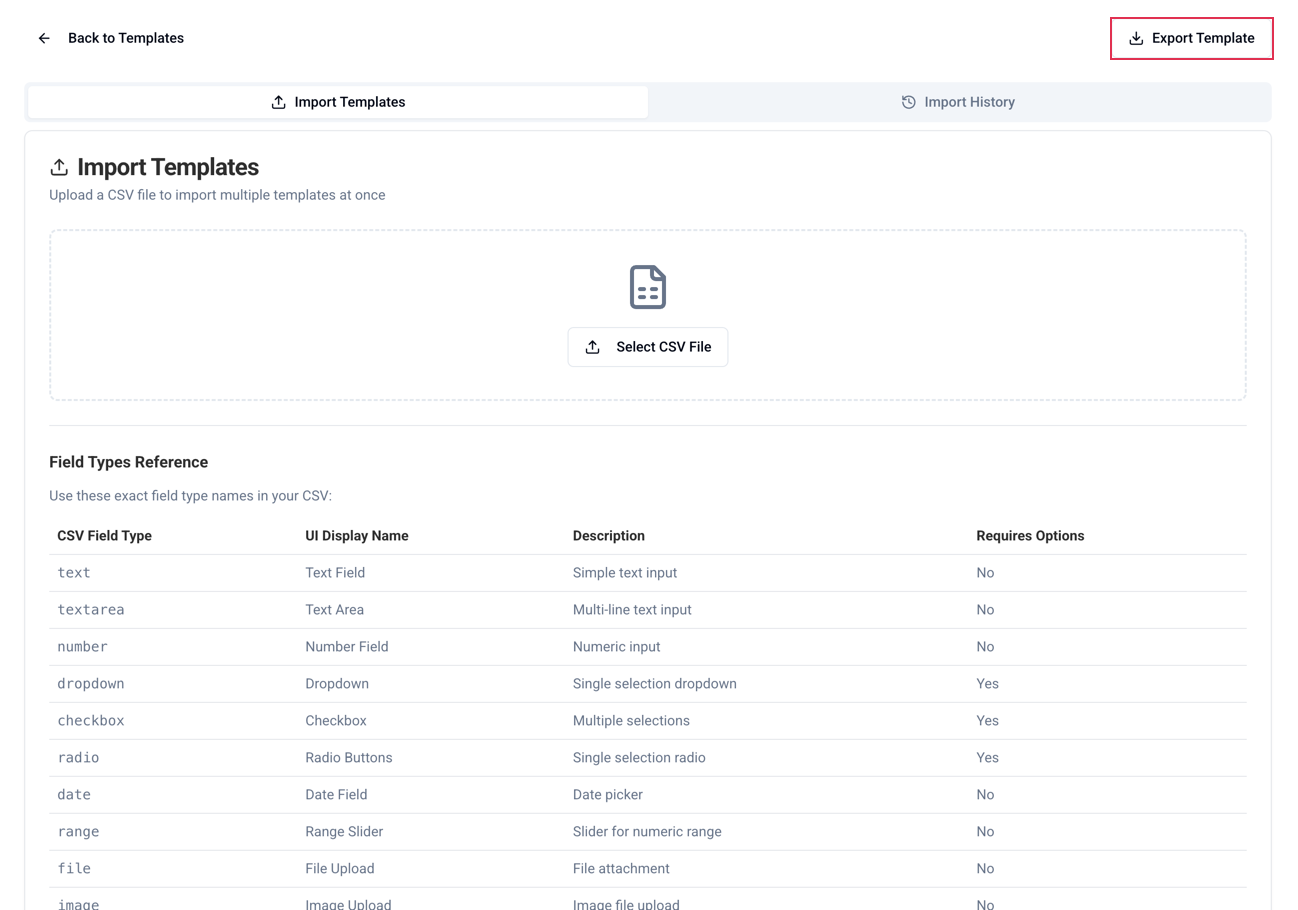
The file includes field type explanations and sample data. Note that you can add Categories and Collections to the imported data and the import function will automatically create these as a part of the import.
Note: a template can only be linked to 1 Category and 1 Collection. 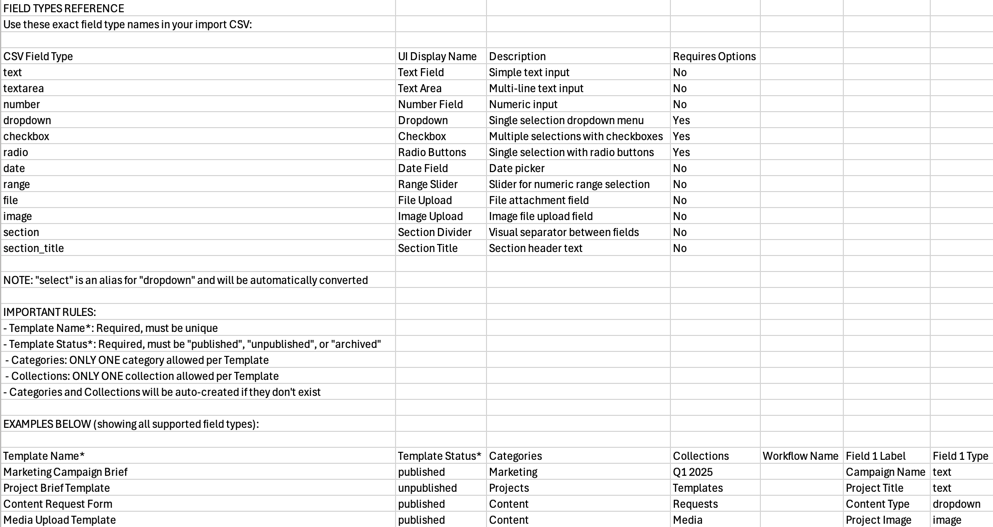
If the import file fails, it will show you a log of which data needs changing and it will reject the entire import. 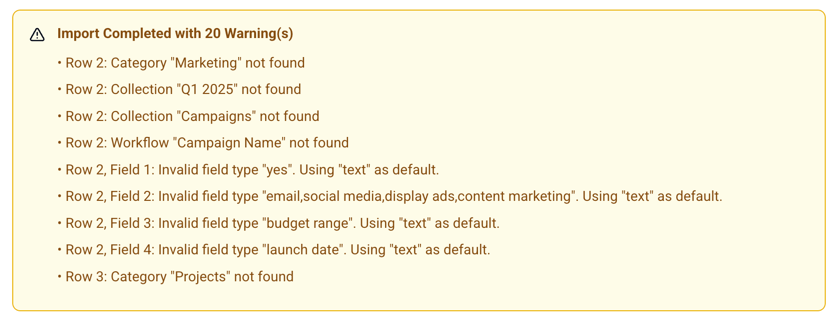
Import History
You can see the import history as well as Roll Back an import if needed. Rolling back will delete the templates (but not the Categories and Collections.
Click on View Details to Roll Back.
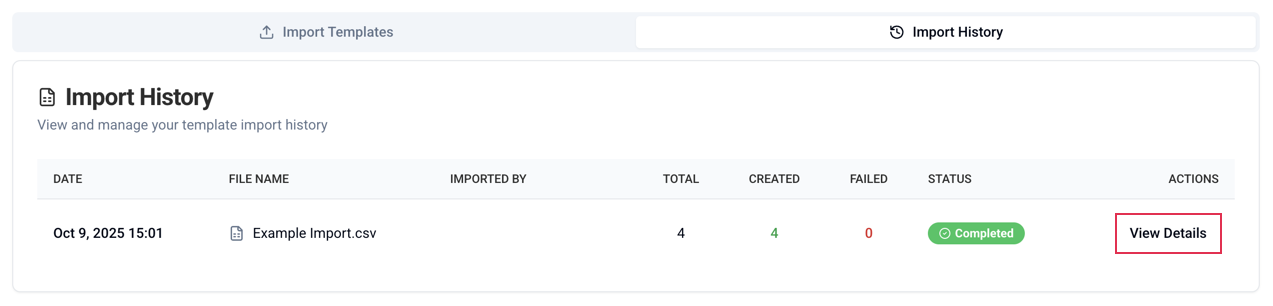
Roll Back: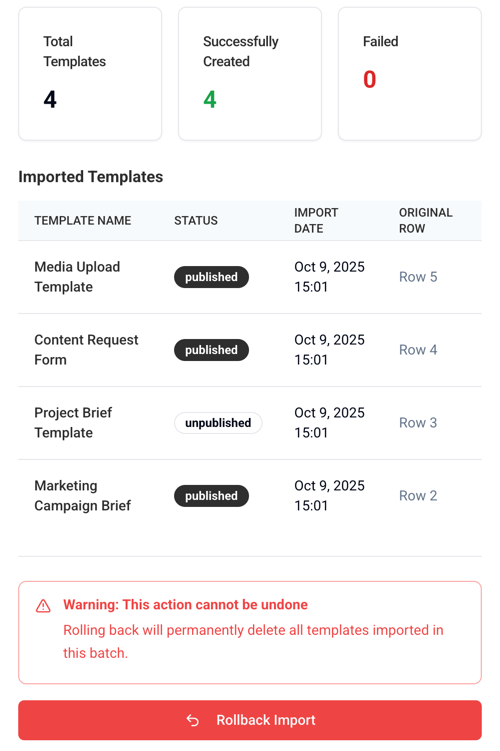
Was this article helpful?
That’s Great!
Thank you for your feedback
Sorry! We couldn't be helpful
Thank you for your feedback
Feedback sent
We appreciate your effort and will try to fix the article