To create and submit a brief, go to My Briefs and click New Brief.
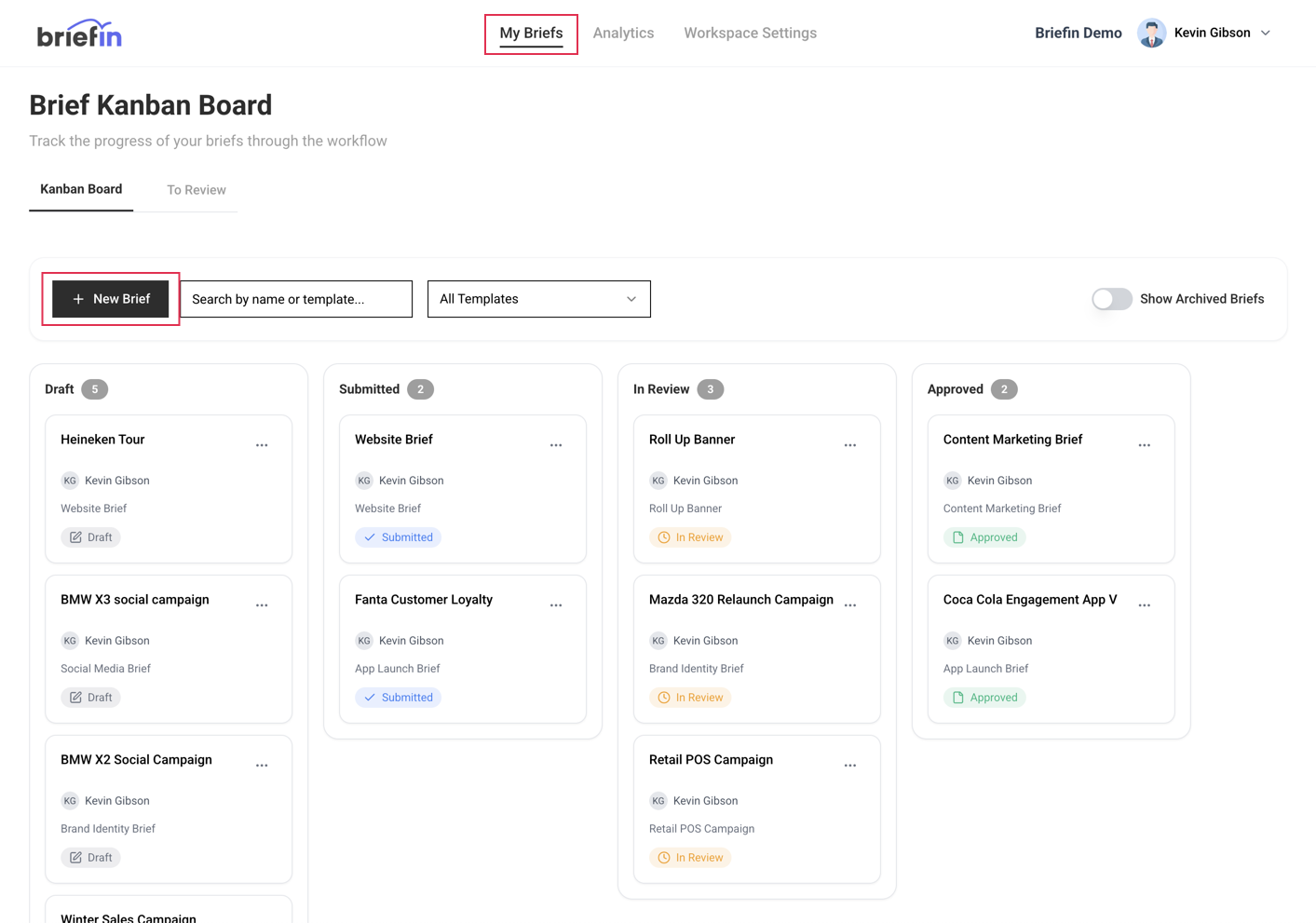
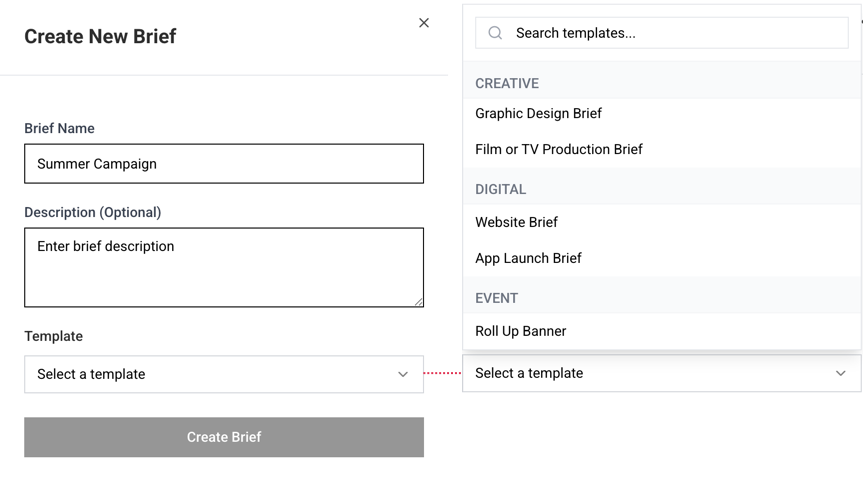
Input a brief name, description (optional) and select a brief template from the list.
Note:
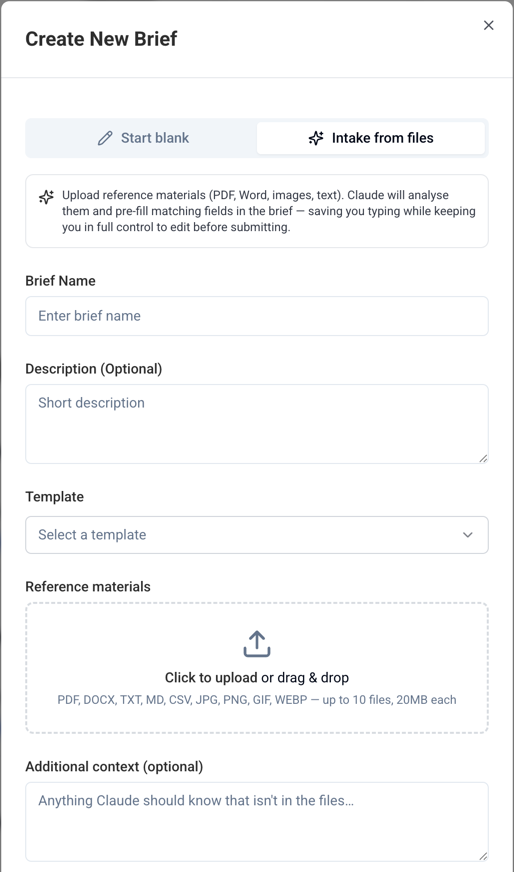
When Claude AI integration is enabled the Intake from files tab becomes available. Similar to the simple brief creation form, you can input a Brief Name, Description and select a Template.
Reference Materials allows you to upload any additional materials that will be useful for Claude to understand the brief requirements. This could for instance be a summary of meeting notes.
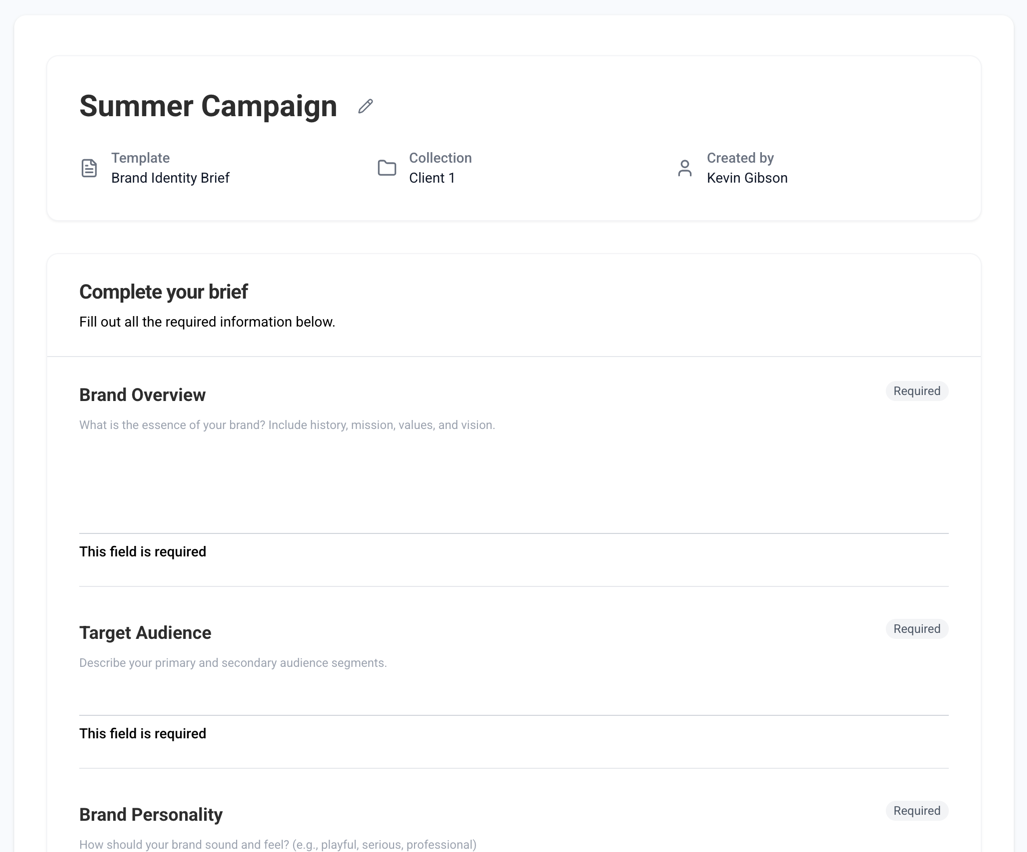
Complete the required fields and provide as much information as possible.
Dependent on the brief template you can upload files and images. Note: the file size for each upload must not exceed 5MB.
In the bottom of the page you can Save as Draft (if you dont want to submit right away), Analyse with AI (if enabled) and finally, Submit the brief.

Brief Submission
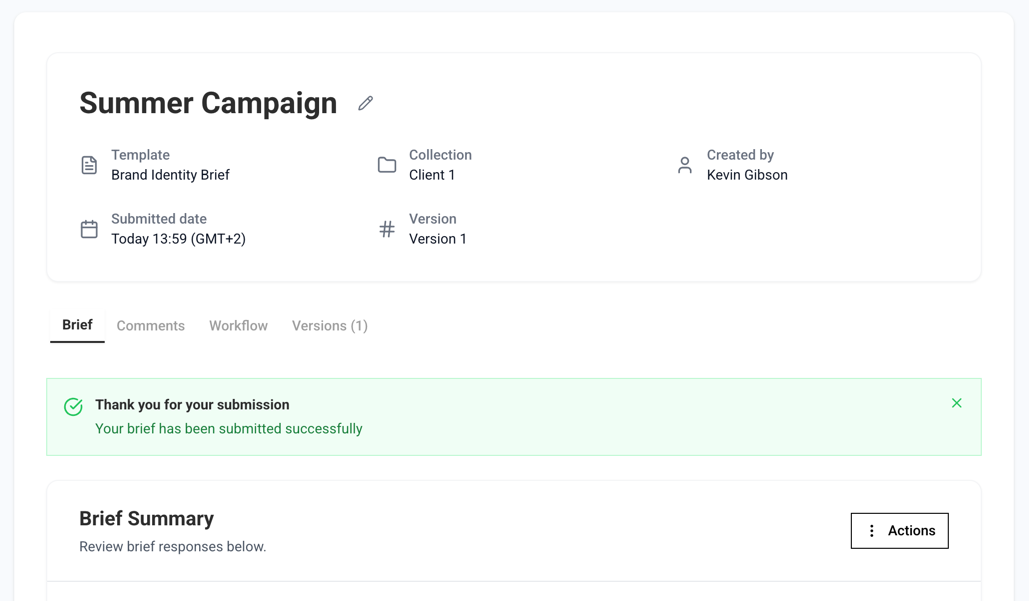
When the brief is submitted, you will see a confirmation page and a read-only version of the brief.
Continue to next step: Brief Review and Collaboration
Was this article helpful?
That’s Great!
Thank you for your feedback
Sorry! We couldn't be helpful
Thank you for your feedback
Feedback sent
We appreciate your effort and will try to fix the article